I have had my iPad for a few months now and my iPhone 4 for a few weeks so I thought I would share a few tips, apps, and accessories that I have found useful. 1I periodically share about what electronic products I use, just as I do books I am reading. I often link to the products on Amazon. In the interest of full discloser (but most of you no doubt already realize this), I do receive a small amount if you buy something at Amazon having followed one of those links. I greatly appreciate and it does help to fuel this blogging habit of mine. Many thanks! First for the iPad.


Cases
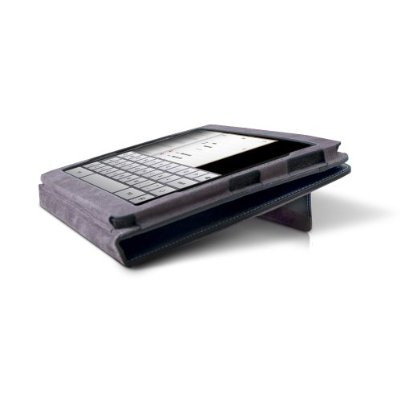
I started out with Apple iPad Case which I found to be very nice. It is a soft microfiber that is completely form fitting, which is very nice since it does not add any substantial bulk to the device. The best part, and what was initially lacking in all other leather case offerings, is the ability to prop the iPad at an angle perfect for typing. Eventually I discovered the Marware Eco-Vue for iPad. At the moment you can get it for $4 less than the $39 Apple case. The Mareware is a beautiful leather case that has a prop for the ideal typing angle I mentioned a moment ago, a hand strap in the back for those times you are wandering around holding the iPad (perhaps in an industrial or hospital setting? perhaps library?), and an elastic strap to close it, similar to a Moleskin notebook. The interior is a very nice gray suede. My top pick for an iPad case.
Apps
In an early post about using the iPad on the road I mentioned the excellent BibleReader and iAnnotatePDF. Both apps have gone from strength to strength. I would add to your must have list DropBox. If you do not have this, you should get it now. DropBox is a cloud storage service that will give you a free 2GB account and software for your Windows or Mac desktop and all your mobile devices, including iOS, Android, and soon BlackBerry. The iPad app is fantastic, allowing you to view your files and, where it is an appropriate file type, open them in another iPad app for the purpose of editing or viewing such as Pages or iAnnotatePDF or GoodReader. We are still lacking a good “round trip” solution that allows you to download, edit, and upload a file, but DropBox is close and their programmers tell me they are working on it very diligently.
A few other apps I recommend are the Guardian Eyewitness, a daily update of their best news photo with pro tips, NPR news app, IMDb for movies, and AirVideo (recommended by my brother) which allows you to stream movies from your computers hard-drive to your iOS device from anywhere! Not bad for $2.99. The other apps are free.
iPhone 4
I upgraded to the iPhone 4 not long after it launched, receiving prompt shipping just 2 days after making my order at the local AT&T store. It is a gorgeous device, the screen, the physical form, the new iOS, it is all very well executed. The front glass is amazing. I have not put any screen protector on it and yet no smudges and not even a hint of scratches. The back is not the same “gorilla glass” but so far has held up very well.


You have no doubt heard about “antennagate,” well I seem to be fairly lucky since I saw now such problems and could not even reproduce the loss of signal, even with my beefy hands. I did pick up the Apple bumper case at the 5th Ave Apple Store (and have since been reimbursed for it by Apple) for protection. It is very nice, just covering the sides and apparently it protects the phone very well. Since the back is not covered I may get a custom ZAGGskin. They make the best screen protector, the ZAGG invisibleSHIELD, and with the skin they will imprint an image of your choice (make it tasteful). So I think I may get a thin case that will protect the back glass as well, the Griffin Reveal Etch is my likely choice.

One note about the bumper. In typical Apple fashion the case is made to very precise specifications. That means that while the Apple headphone jack and USB cable fit with the bumper on, any other version does not. I use and love the Griffin AutoPilot Charger, it allows you to simply plug right into the iPhone port, charge the phone and even control the iPod from the adapter (the auxiliary cable comes off the adapter rather than the iPhone headphone jack). The problem is that the connector is just too big for the bumper case. Being who I am I decided to hack it. The connector has a black shield around it which I removed, but that required just a touch of superglue to keep the gray cover from sliding off the connector itself. Now it fits perfectly. Of course you could always just remove the bumper or choose another case.

BTW the “best iPhone clock radio” that I blogged about before, the Griffin AirCurve, works just fine with the phone in the bumper, just remove any adapter that you might have placed in the base.
All the old apps are working fine and many have been updated to take advantage of iOS 4. Again, I have been fortunate, where others have had problems upgrading their 3GS or 3G we have been fine in our family. As always, YMMV…
- 1I periodically share about what electronic products I use, just as I do books I am reading. I often link to the products on Amazon. In the interest of full discloser (but most of you no doubt already realize this), I do receive a small amount if you buy something at Amazon having followed one of those links. I greatly appreciate and it does help to fuel this blogging habit of mine. Many thanks!