FINAL UPDATE: For now, using Pages with Dropbox may be the best solution.
UPDATE: October 2013. I am late in noticing this but Google (who acquired Quickoffice last year) has announced that they have released a free version of Quickoffice. Sounds good, right? But there is a BIG hitch. It will only support Google drive, no other cloud services.
- The new app works closely with Google Drive to provide a unified cloud storage solution where you can access, edit, and store your files. Other cloud storage providers are not supported in the app. If you have files stored with a cloud service provider other than Drive, you may want to transfer the files to Drive for continued ease of access and editing of files.
The original Pro HD version continues to work for me in iOS 7 but they are clearly not planning on supporting it going forward. I also have Office2 HD and it was, in fact, the first app I used to connect to Dropbox and integrated into my workflow (as I describe three years ago in “Using the iPad – Research, meetings, and fun“). I had gone away from it for some reason, but opening it tonight I find it looks better, is running well, and should prove to be a fine replacement for the no longer support QOHD. Nope. I wrote too soon. It is incredibly buggy. See my update.
Originally posted September 30, 2011:
My colleague recently acquired an iPad and in setting up her iPad she ran into a problem that is quite common. While you can open a file from the Dropbox app into Quickoffice (or other apps) you cannot upload it to Dropbox from within QO until you add DB to QO. Once you have done that, the best practice IMHO is to open the file from DB in QO and edit it there. QO will then automatically save that document back to DB. A few screenshots should help clarify.
First you need to connect QO to DB. You do this from within QO:
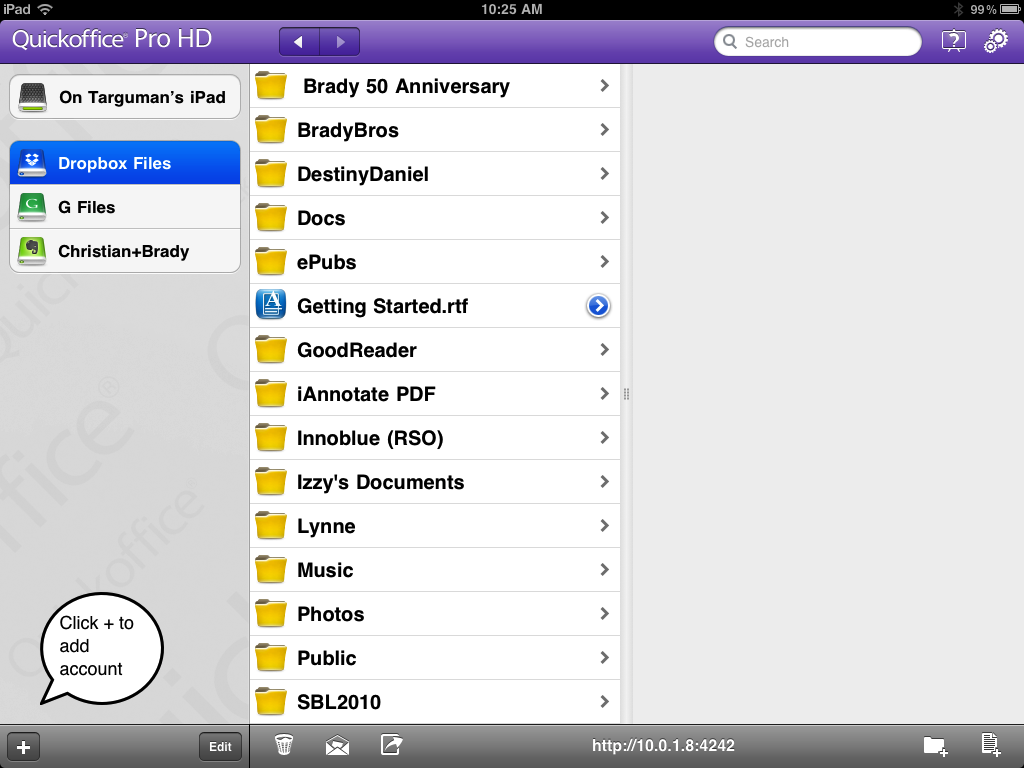
Once you have clicked the “+” symbol you will get this menu:
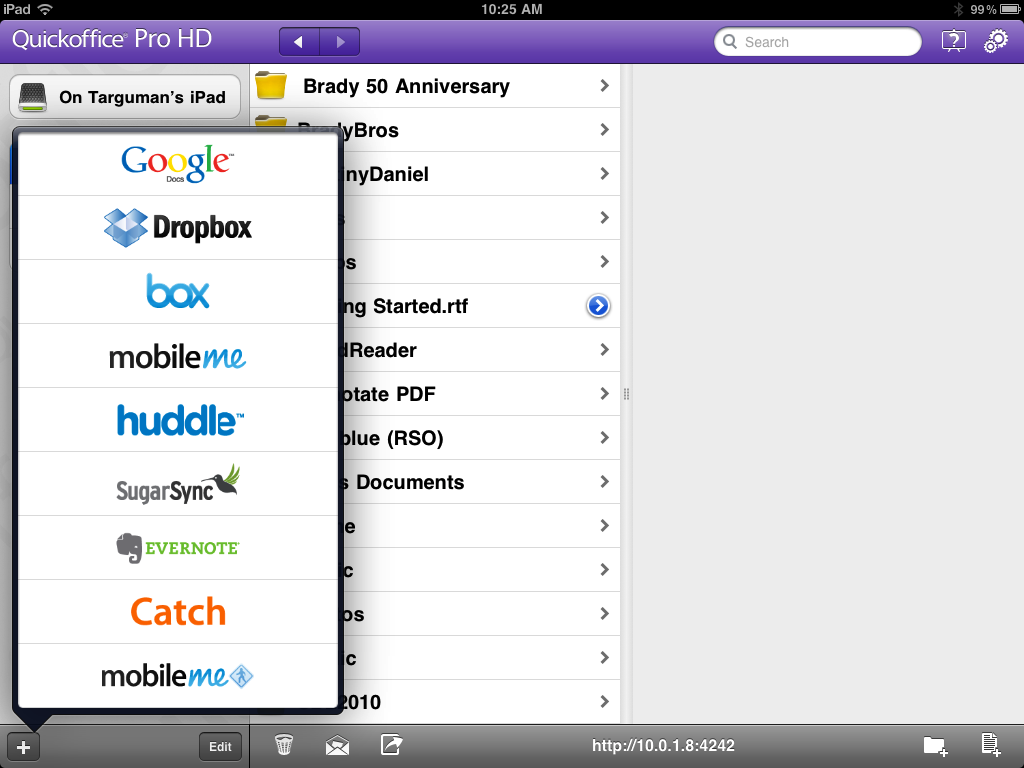
Notice that you can add accounts from several different services including Evernote and Google Docs. The next step is to fill in your credentials.
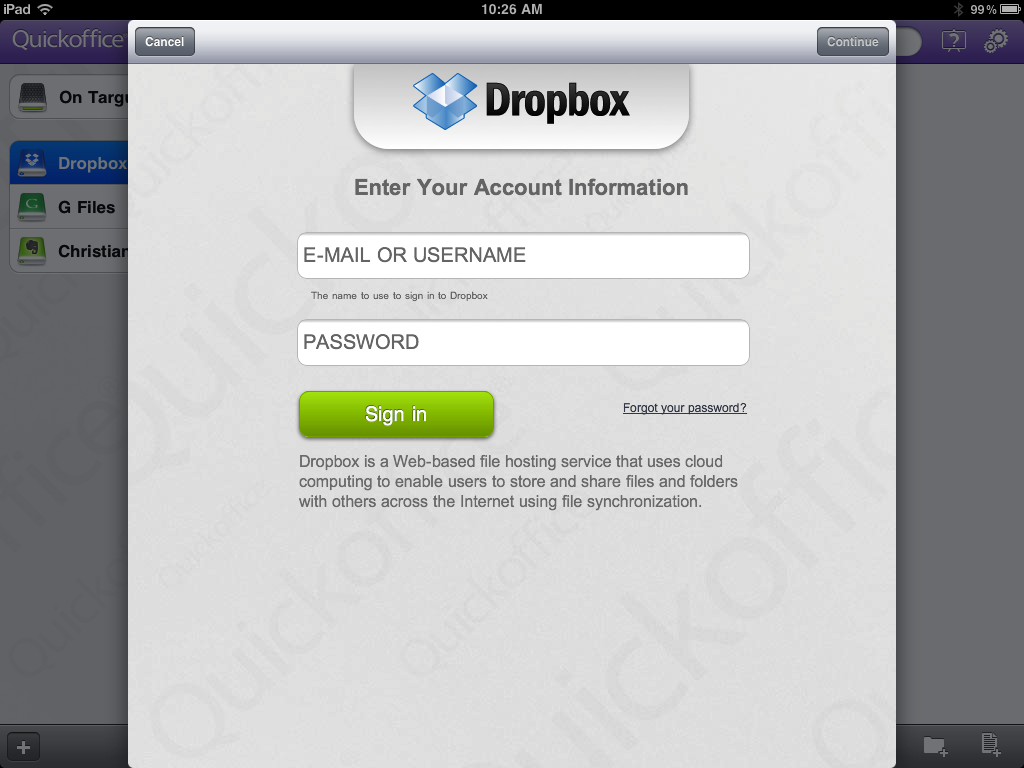
Now, when you want to edit a file that is saved in Dropbox (or one of the other services) simply select it from the account listed in the left hand column.

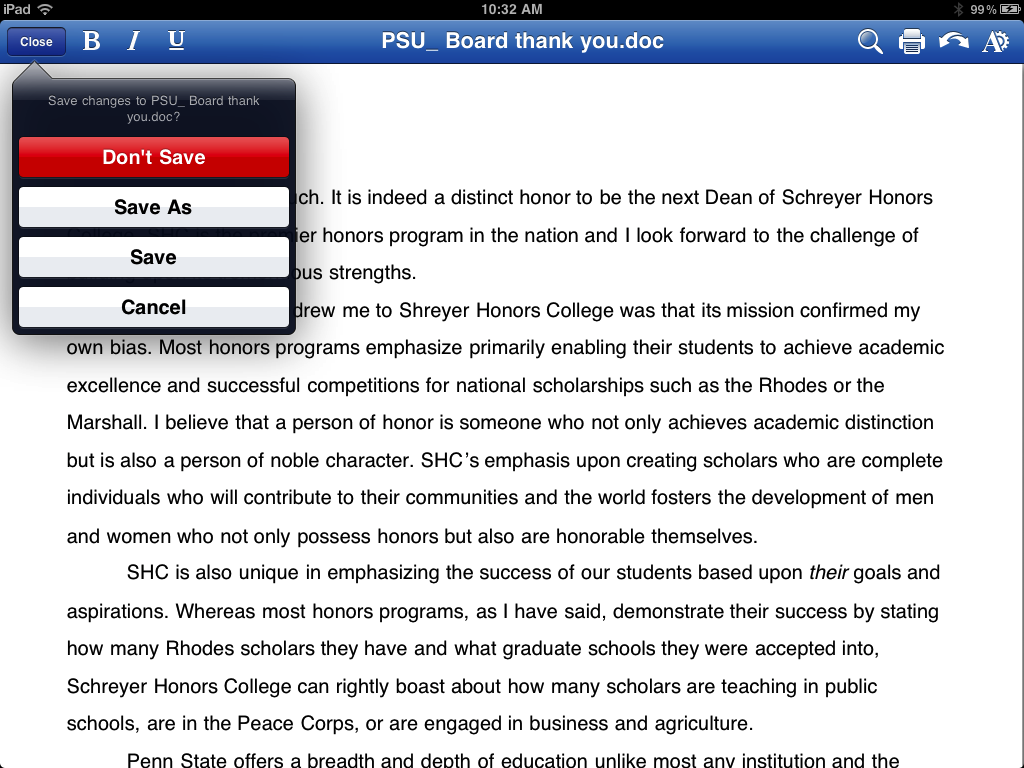
QO will periodically automatically save the file to your DB account. Now that your DB account is set up you can also save local files to DB by using the “Save as” menu, navigating to the DB folder where you would like to save it.








14 thoughts on “Using Quickoffice Pro HD with Dropbox on the iPad”
Hey man thanks for this resource! When debating on buying the Pro version of Quickoffice App for iPad I googled “how do i take files from quickoffice pro and put it in dropbox” and this article came up which was very helpful. I will def be buying the Quickoffice app now.
Very helpful. thanks
This was very helpful! I couldn’t figure out why every time I opened a spreadsheet in my DB app it would keep a copy of it in my Inbox in QO when I closed the spreadsheet. Once I linked my DB account with QO it worked seamlessly and now saves the spreadsheet under my DB folder. Thanks!
outstanding. It would ahve taken me days to figur ethis out
Thanks for this information. It was very useful
Love it! Thanks.
Thanks for this! Very helpful.
I have been searching for days. About to toss the program. Very clear instructions. Thanks
DocumentsToGo supports Dropbox…
Dave,
Thank you. I see that you work for DataViz, the maker of DocumentsToGo. I had tried that ages ago and it was buggy, but I will look into it again. Is it fully compatible with iOS7?